Check the scale of an imported model
Use a known dimension to check an imported model before judging its proportions or preparing it for printing.
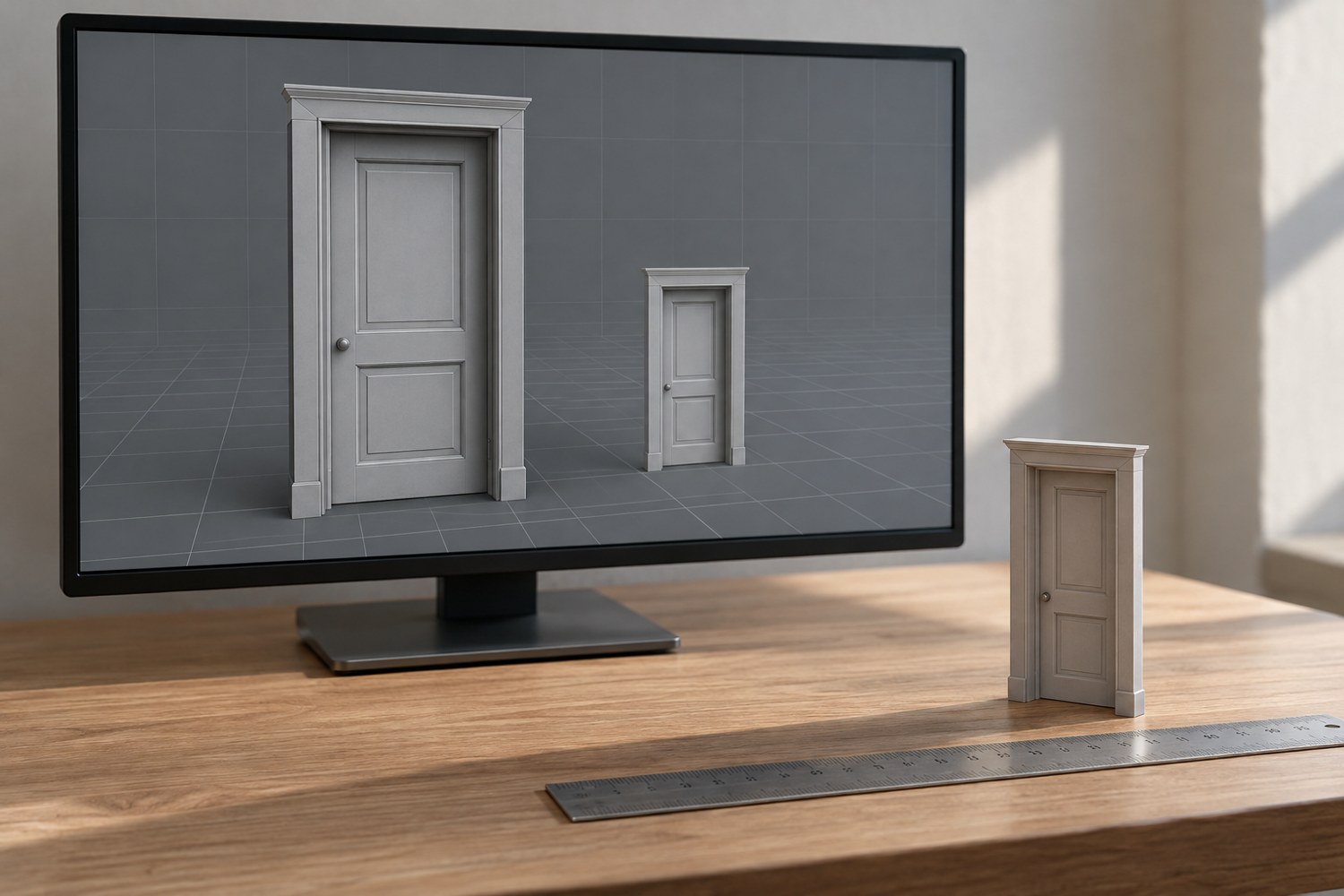
An imported model that looks plausible can still be the wrong size. The view may automatically zoom to fit, making a tiny part appear just as substantial as a correctly sized one. Check a numerical dimension before rotating, repairing or slicing the object.
Choose a feature whose intended measurement is known. A supplied overall width is useful, but a specific opening or mounting distance can be a better reference if the model has decorative projections. Record which measurement you are checking. Comparing an outer bounding box with an inner opening will produce a misleading scale correction.
Calculate one deliberate change
The uniform scale factor is the desired dimension divided by the current dimension. If a hypothetical base should be 120 millimetres wide and imports at 80 millimetres, the factor is 1.5, or 150 percent. Apply it uniformly when the whole model is intended to grow in proportion. Recheck the other dimensions afterward instead of assuming the operation answered every fit question.
Do not repeatedly scale by eye until the model looks right. Save the original import and write down the applied factor. If another part belongs to the same assembly, it may need the same transformation. Scaling a roof but not its matching walls creates a new mismatch even if each piece individually looks reasonable.
Blender's STL documentation describes import and export scale controls and a scene-unit option. These are reasons to check the full transfer path, not reasons to adopt a universal multiplier. Different modelling and slicing applications may interpret the workflow differently. A verified reference dimension is more reliable than a remembered conversion from an unrelated project.
Reassess features that should not scale
A display figure can often be resized as a visual object, but a screw hole or a slot for a purchased component may need to retain a fixed measurement. Uniform enlargement changes both. Decide whether the project requires proportional resizing or a redesign with some dimensions held constant.
Small surface features also deserve another look after reduction. Readable lettering can become too fine for the chosen printing process, and a previously substantial wall can become fragile. Inspect a sliced preview and consider a small test of the affected feature. Correct overall scale does not guarantee that every detail remains useful.
Finally, export the adjusted model and reopen it in the intended receiving application. Verify the reference dimension again. Store a note with the file stating the expected size and the measurement used to confirm it. This closes the loop between a visual model and the physical object you intend to make.
Another detail to explore
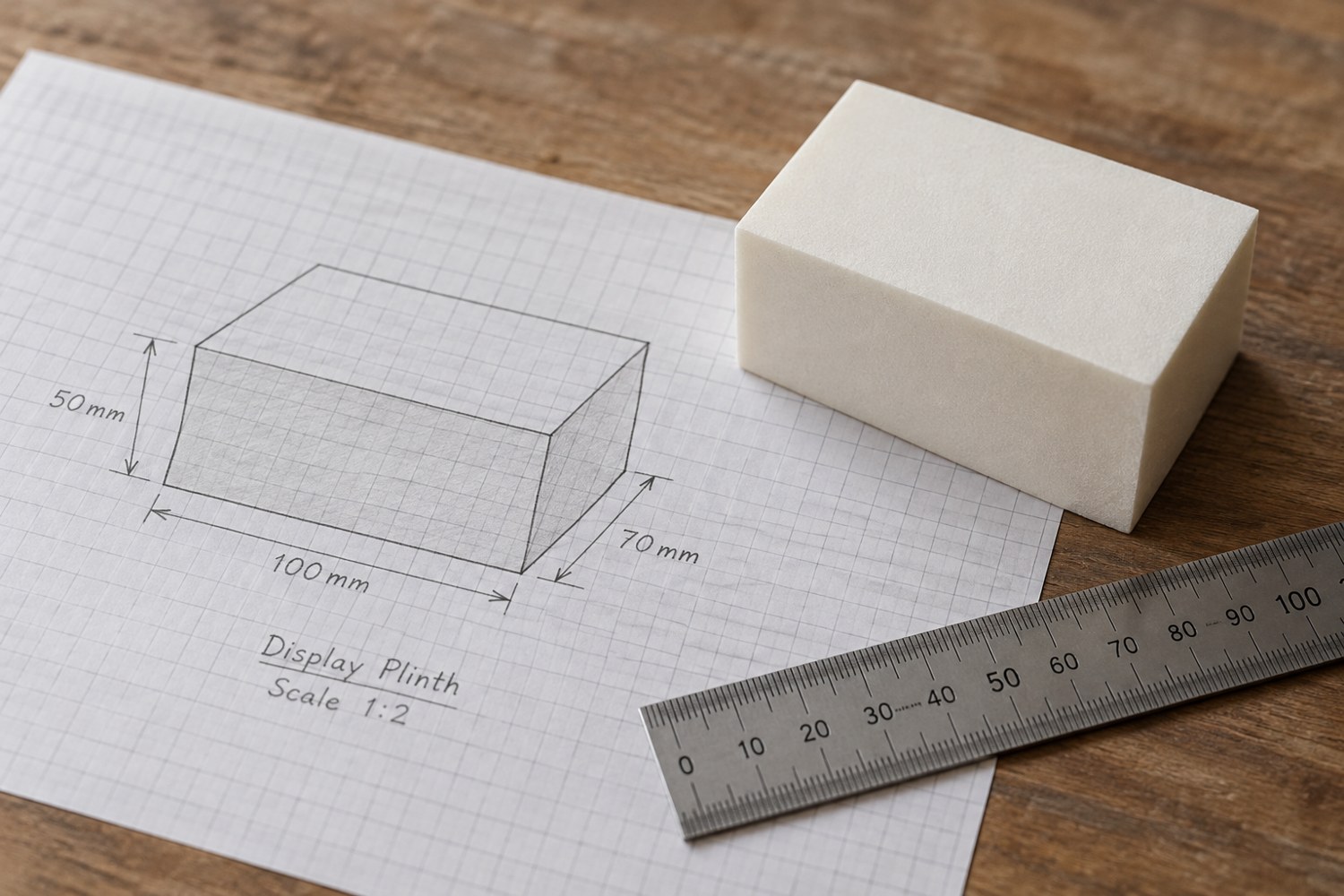
Start a model with dimensions instead of details
Build a short dimensional brief before adding bevels, textures or decorative features. It gives every later modelling decision a reference.
Read article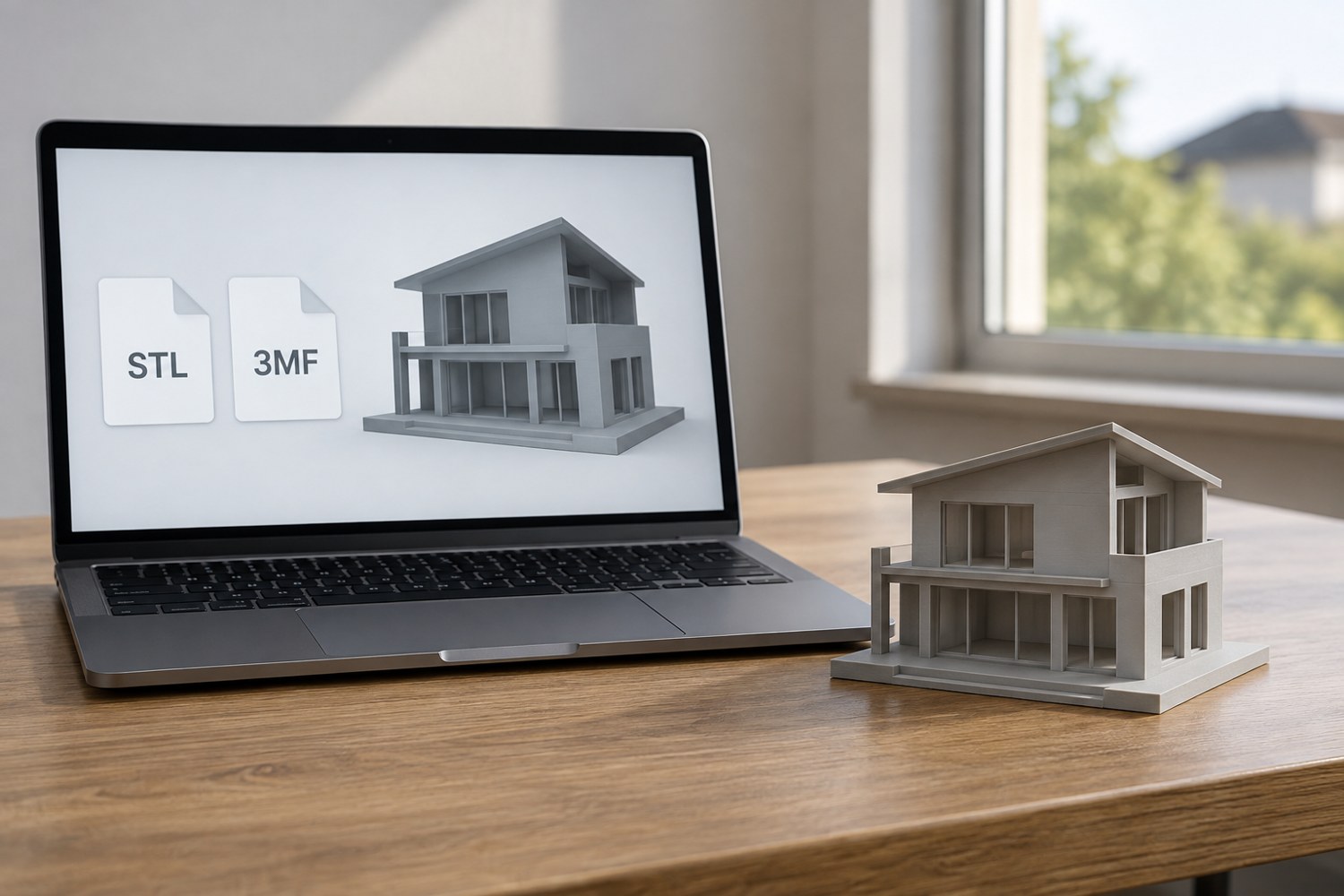
Understand STL and 3MF when sharing a print project
An STL mesh and a saved 3MF project can carry different information. Decide what a recipient needs before choosing the file to send.
Read article